How to Set Up a Contact Card
Last updated: October 18, 2025
What is a Contact Card?
A VCF (Virtual Contact File) is a standardized text file format used for storing and sharing contact information, essentially an electronic business card.
Adding a VCF (contact card) helps your brand stand out and stay visible in customers’ inboxes. With Apple’s latest iOS update now filtering messages from unknown senders, having your verified contact card ensures your texts appear as trusted and recognizable - not lost in “Unknown Senders.”
Learn more about the new iOS update here!
How to set up your Contact Card in OneText
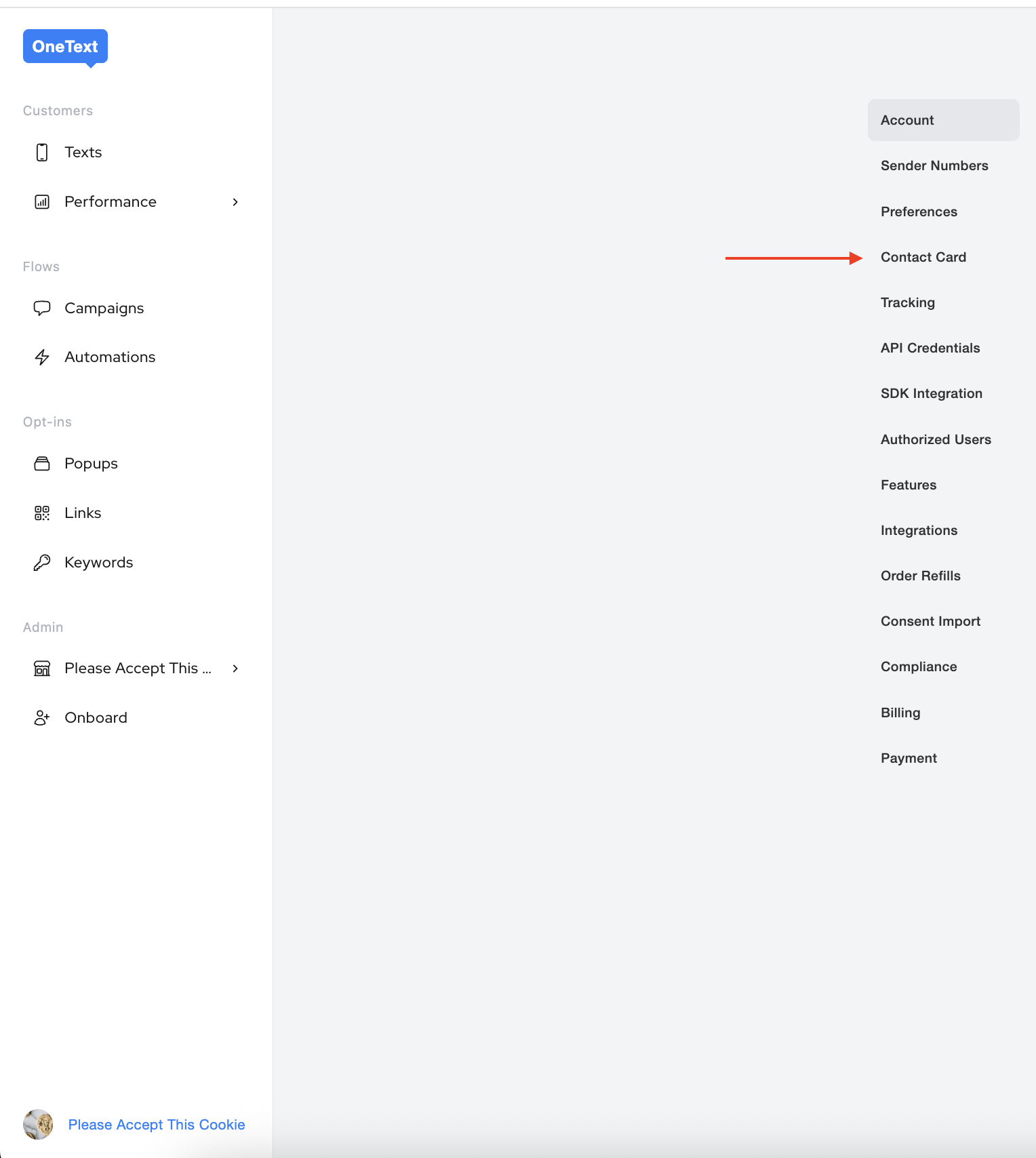
Navigate to the Settings Tab > Contact Card
Contact Card Field Guide
Name - This is the primary name shown in contacts. We recommend using your brand name here so customers instantly recognize who the message is from.
Company - A secondary field where you can include an alternate or parent brand name, if applicable.
URL - Add your homepage URL so customers can easily visit your site directly from the contact card.
Title - Appears above your brand name. Use this space for a short tagline or descriptor that reinforces your brand’s identity (e.g., “Premium Skincare” or “Official Store”).
Photo - This is the main image customers will see on your contact card. We recommend a 400x400px JPG or PNG — preferably your logo or another recognizable brand image.
Note - Here’s the fun part: use the Note section to include a special code or message that only customers who download your contact card can see. Since Apple and Google don’t share metrics on how many people save your card, this trick lets you incentivize downloads and track engagement - for example, “Use WELCOME10 for 10% off your next order.”
This is how it will appear before the download:

This is how it looks once saved:

Using the Contact Card Feature in OneText
Once you have your contact card set up, enables it in campaigns and automations so customers can start downloading it!
Campaigns
We recommend all brands send a one time blast to all their subscribers encouraging them to download the contact card. This will ensure that as more and more people download iOS 26, you will be safe from the unknown sender feature.
IMPORTANT NOTE
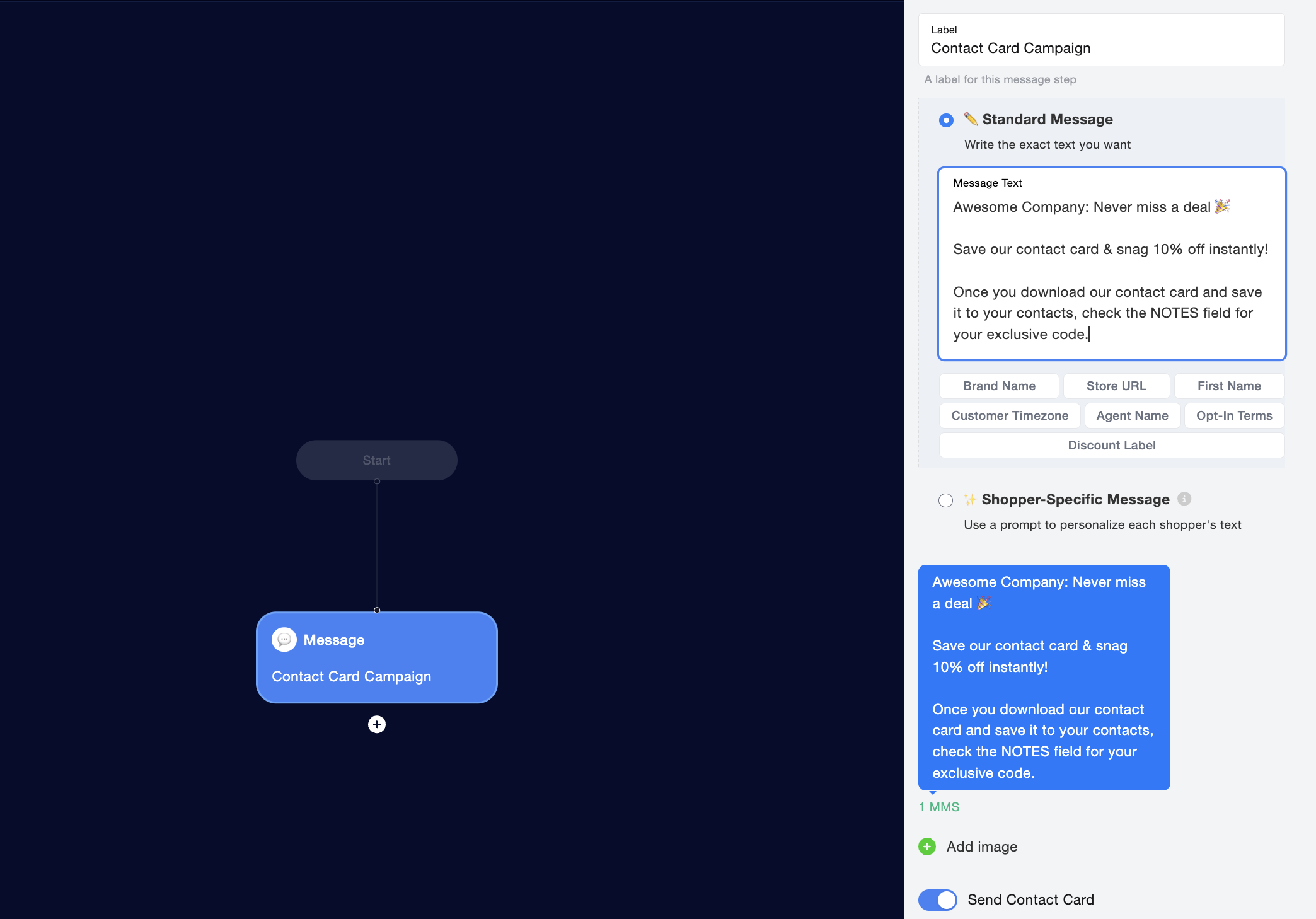
Contact card campaigns are sent as MMS messages, which typically use 2–4 sending credits PER message sent depending on your plan. Please make sure you have enough credits in your account before sending to avoid any overage charges.
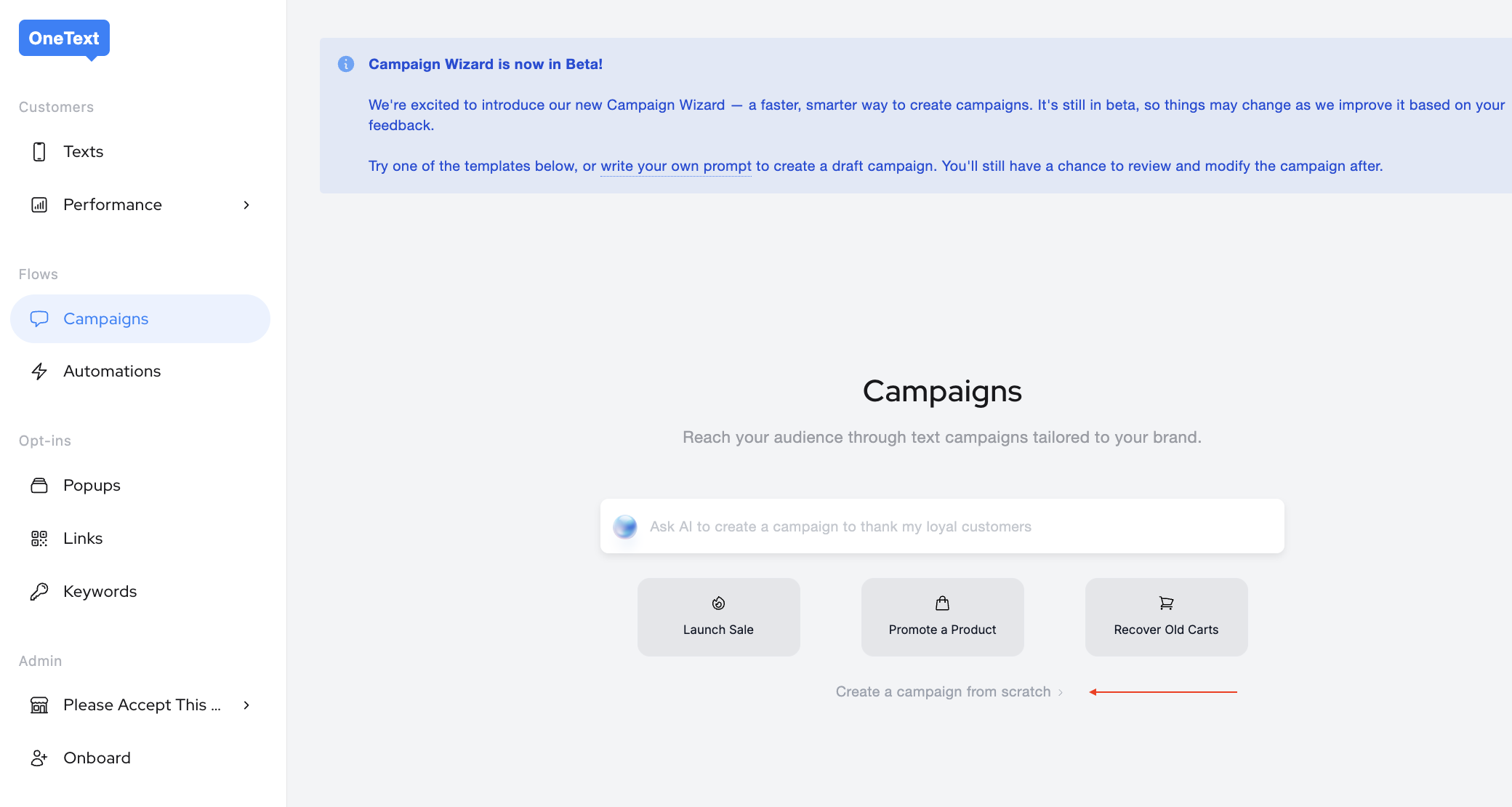
Navigate to Campaigns > Create a Campaign from Scratch
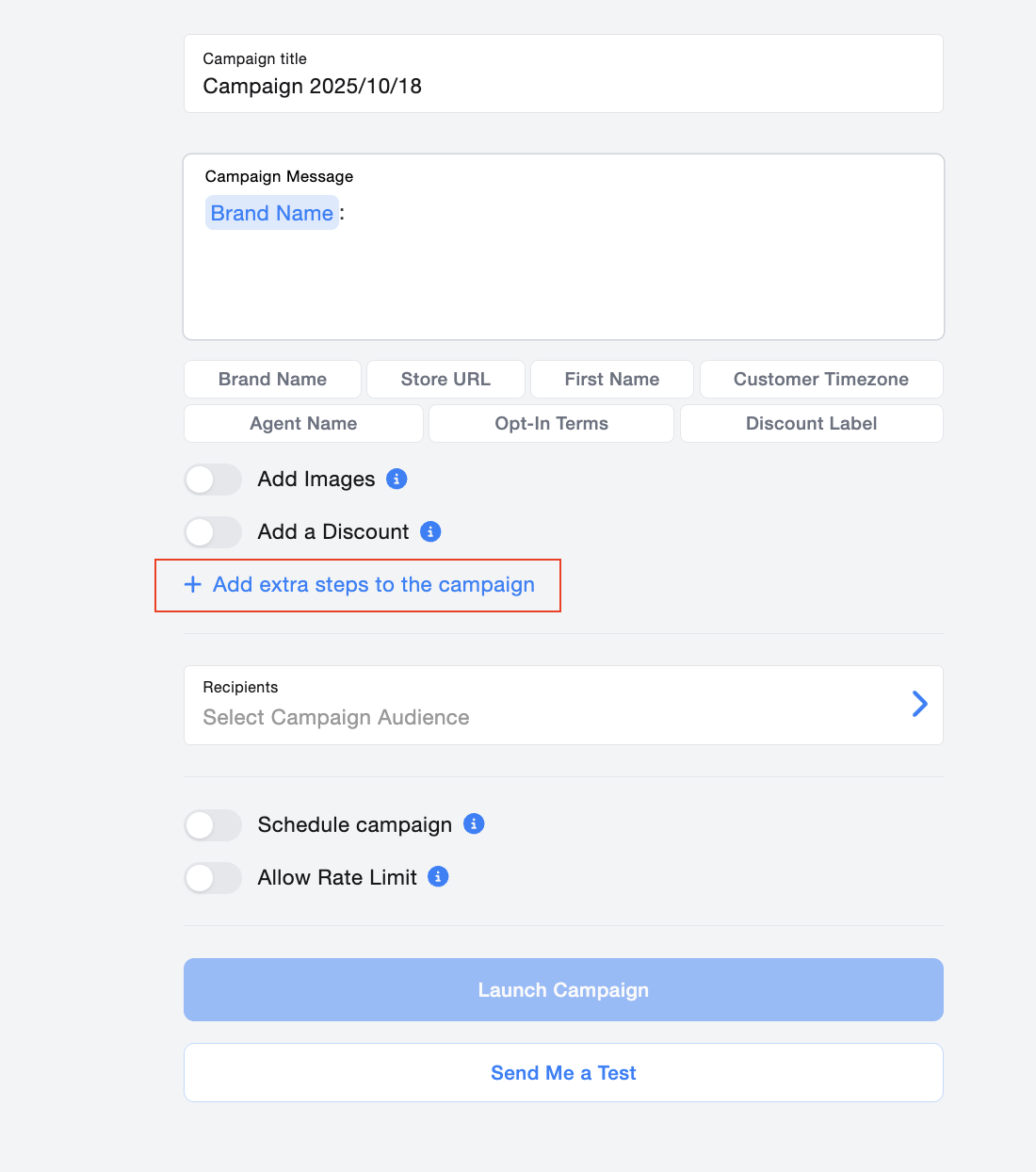
Click "Add Extra Steps to the Campaign" to be taken to our flow editor.
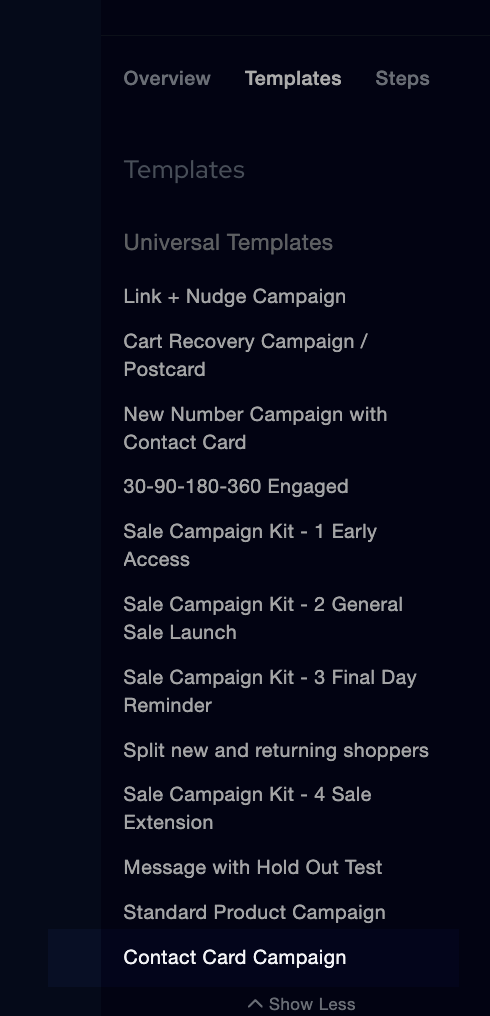
Create your own campaign from scratch, or use our "Contact Card Campaign" template located in the Universal Template section.
Automations
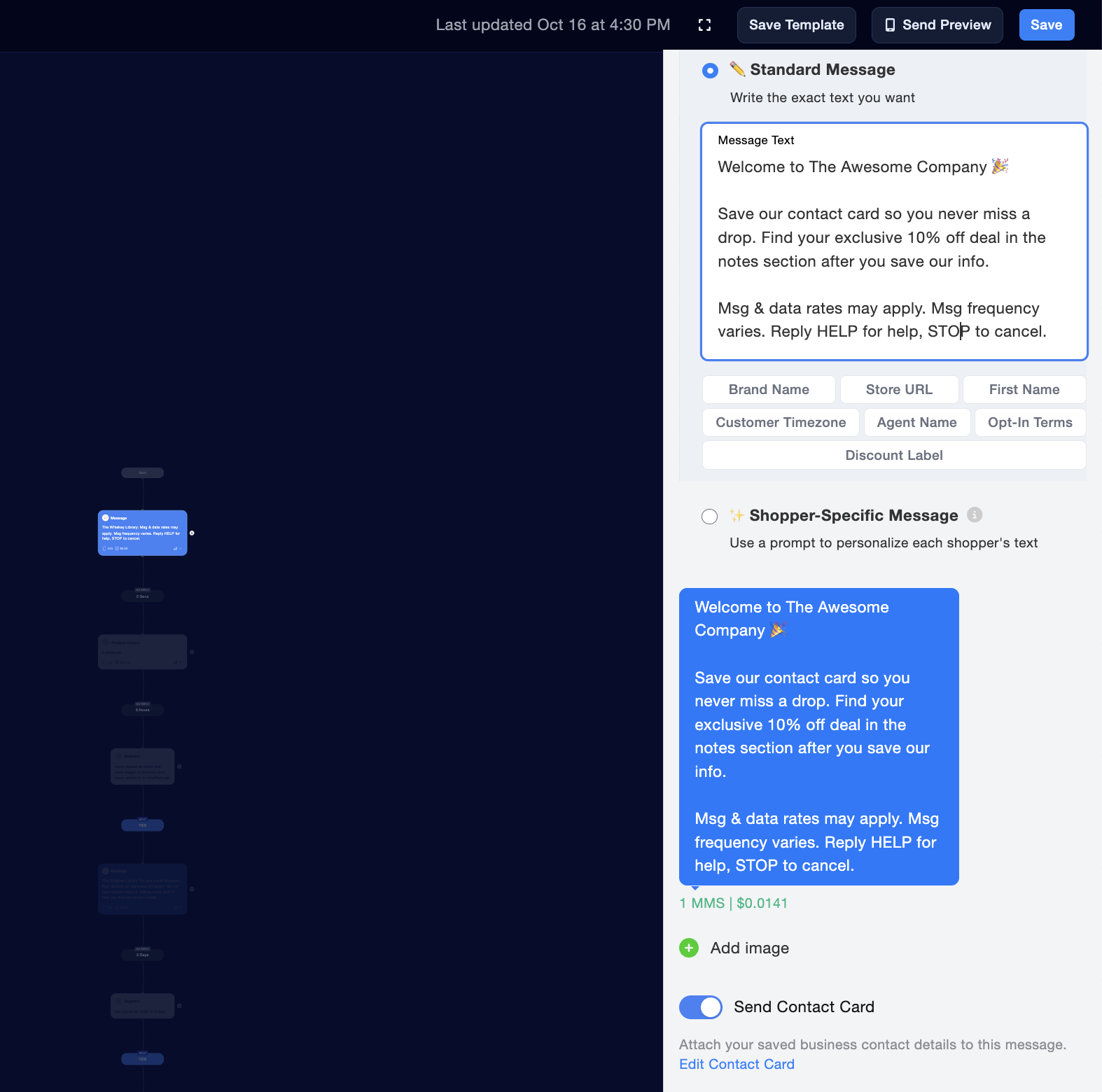
You can add a contact card to any automation, but the best place to include it is in your Welcome Message.
To set it up, open your Welcome Automation and enable “Send Contact Card” on the first message of your flow.