Adding Custom Klaviyo Profile Properties
Last updated: March 5, 2026
Note: This is an advanced step that involves syncing both platforms. If you need help, feel free to reach out to Support
Prerequisites Before getting started, make sure you have the following ready:
An active Klaviyo account with flow-building permissions
An active OneText account with API access
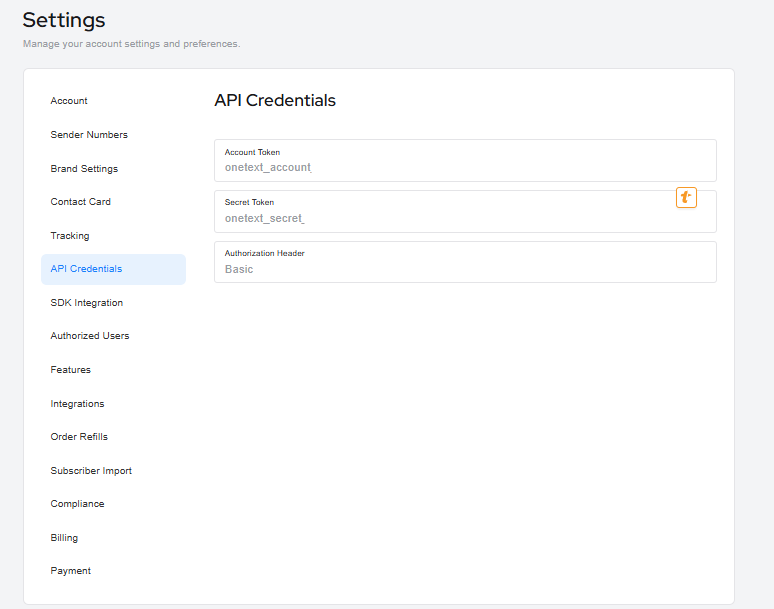
Your OneText Authorization Key and Header Value (found in Settings → API Keys in your OneText dashboard)
Basic familiarity with Klaviyo flows and webhook blocks
Example Scenario: Syncing a Customer's VIP Loyalty Tier to OneText
A brand runs a tiered loyalty program with three levels: Bronze, Silver, and Gold. When a customer reaches a new tier, they are added to the corresponding Klaviyo segment (e.g., "Gold Members").
This Klaviyo flow triggers on "Joined Segment: Gold Members" and fires a webhook to OneText, passing a profile property of "Gold" and "VIP": "true"
Once synced to OneText, the brand can use these properties to:
Personalize SMS messages to specific Segments — e.g., "As a Gold Member, you get early access to our sale!"
Gate exclusive flows — only send certain SMS campaigns to customers where
loyalty_tierequals"gold"Suppress messaging — avoid sending generic promotional texts to VIP customers who receive a separate high-touch flow
This ensures that customer data stays consistent between Klaviyo and OneText without any manual updates or CSV imports.
Create a Klaviyo Flow
Create a Klaviyo flow for the trigger (e.g., “Joined Segment”, )
Add a Klaviyo Webhook
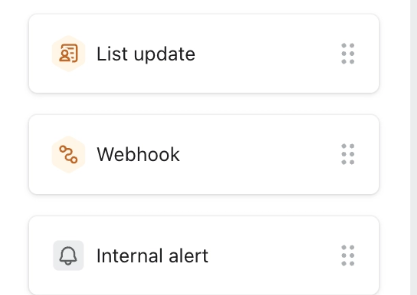
Name the webhook (OneText Profile Property, etc.)
Add Destination URL:
https://onetext.com/api/customer/propertiesAdd “Authorization” (Key) and Authorization Header (Value) from OneText account
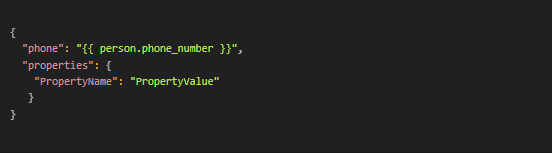
Copy JSON payload into Klaviyo Webhook block
Save (and check for errors!)
Klaviyo Webhook Payload Template
Note: Property values are always strings. Be sure to use quotes even for values like “true” or “5793”
Real World Use
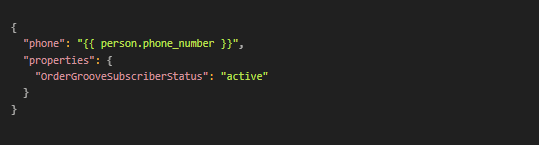
Simple Reference