Automate your BFCM offers with the Schedule Step
Last updated: October 23, 2026
What the Schedule Step does
A Schedule Step splits a flow by date and time. Subscribers who enter the flow during the window you set go down one path, and everyone else goes down the other. When the window closes, the flow switches back on its own.
During BFCM, that means you can build your sale messaging once, set the dates, and let your flows change over at exactly the right moment, even at midnight on a holiday weekend.
Note: The branch switches on schedule, but messages still follow Quiet Hours. If a subscriber enters the flow overnight, their message waits until Quiet Hours end.
Why use it instead of switching flows by hand
No late-night edits. Your sale offer starts and stops on schedule, even if the sale ends at 11:59 PM on Cyber Monday.
No stale offers. Subscribers never get a BFCM discount after the sale ends, or a full-price message while it's running.
Your regular flow stays intact. Your everyday messages sit untouched in the other branch, ready the moment the window closes.
Where to use it during BFCM
Welcome flow. Swap your standard welcome offer for your BFCM offer during the sale so new subscribers get the same deal as everyone else.
Abandoned cart and checkout. Mention the sale and when it ends ("Sale ends tonight at midnight") during the window, and go back to your usual reminder after. The sale price is already the incentive, so you don't need to add another code.
Winback. Pause your winback discount during the sale so it doesn't undercut your main offer, then bring it back automatically afterward.
Post-purchase. Thank BFCM buyers with holiday-specific copy and tee up a reason to come back in January.
Set one up
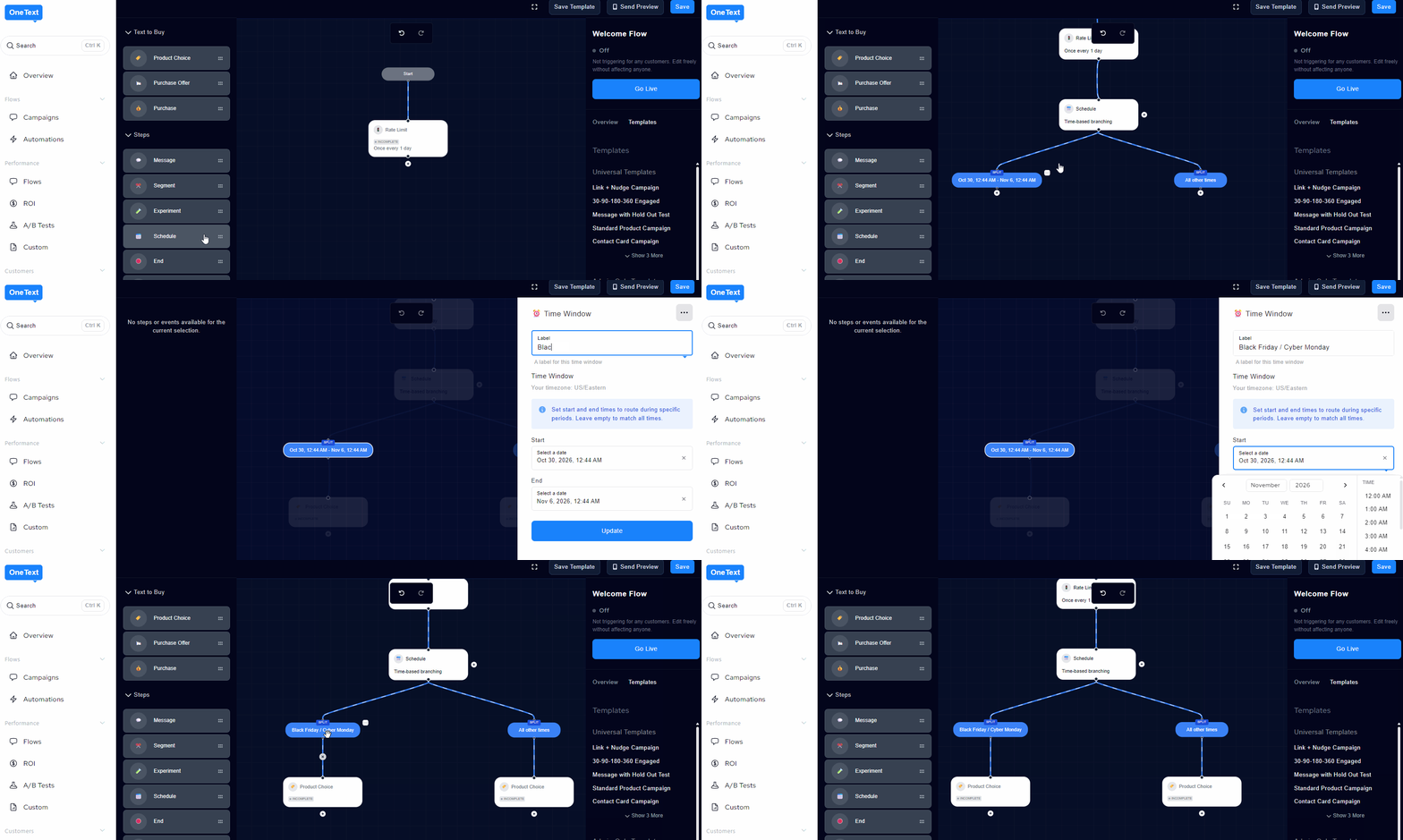
Open the flow you want to update in the Flow Editor.
Add a Schedule Step where you want the flow to split, usually before the first message.
Set the start and end date and time for your sale.
Build your BFCM messages in the branch for subscribers who enter during the window.
Connect your existing messages to the other branch.
Preview each message, then publish the flow.
Plan your windows
If your sale has multiple stages, you can set up a branch for each one so the messaging changes as the week goes on:
Window | Example message focus |
|---|---|
Early access | VIP or text-subscriber head start |
Black Friday through Cyber Monday | Main sale offer |
Final hours | "Last chance" urgency |
After the sale | Back to your regular flow |
Tips
Double-check the end time. If your sale ends at 11:59 PM on Monday, set the window to match exactly, including the time zone.
Match your site. Make sure your branch dates line up with when your discount codes and sale prices go live and expire on your store.
Test before November. Walk through each flow yourself during a test window to confirm the right branch fires.
Need help setting up a Schedule Step? Reach out to your OneText team and we'll help you get it ready before the rush.