November 2026 Product Release Notes
Last updated: November 25, 2026
Major Releases
AI Performance Reporting
(Performance > AI Performance)
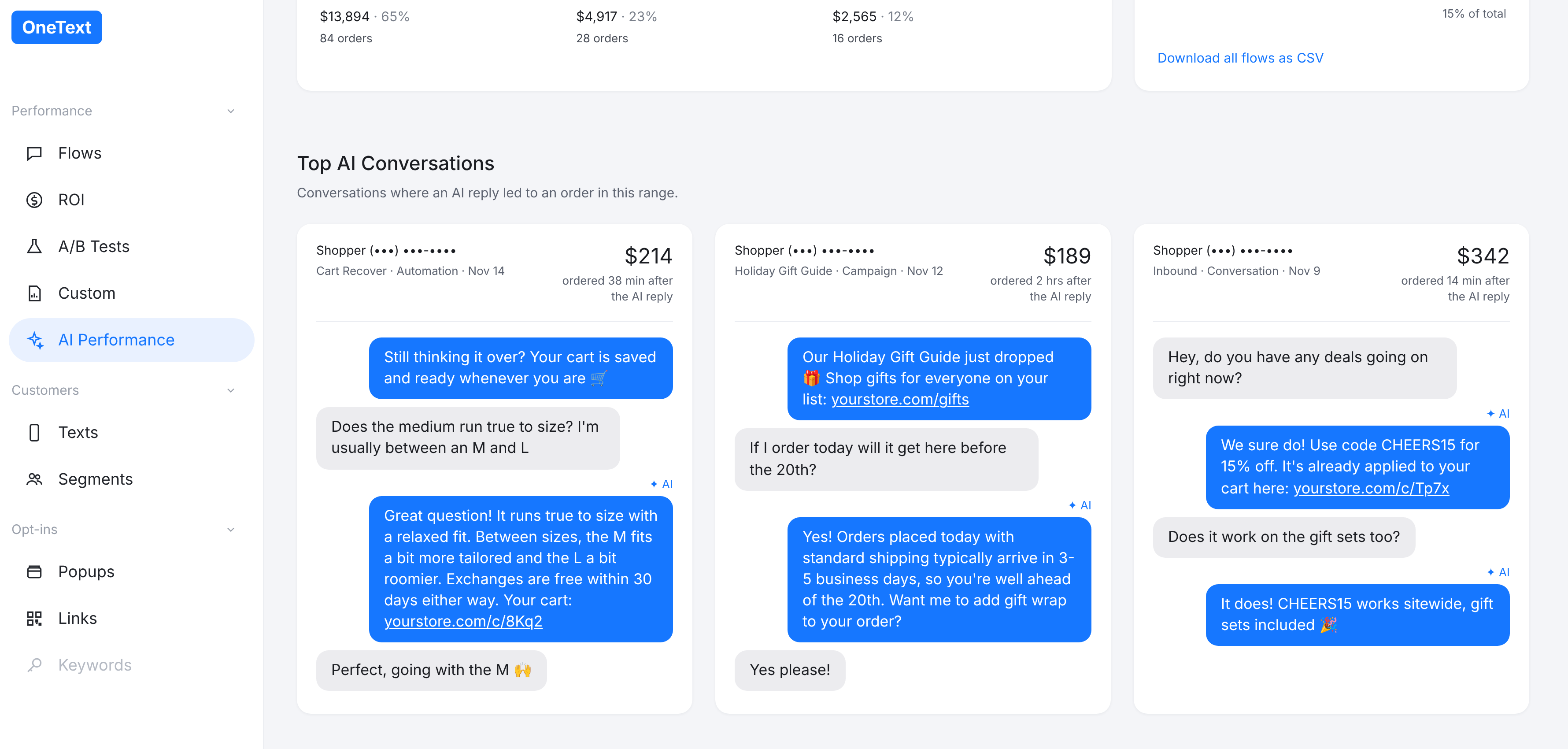
A new page shows how much revenue the OneText AI brings in and where it comes from.
What's New
Top cards: AI Orders, Shoppers in AI Chats, AI Replies Sent, and EPM, each compared to the previous period
AI Revenue chart: revenue over time, split into Automations, Campaigns, and Conversations
Top Flows: every campaign and automation that earned AI revenue, with a CSV download
Top AI Conversations: examples of AI chats that led to an order, with a View conversation link that opens the thread in your inbox
Why This Matters
See what the AI is adding to your revenue at a glance
Find out which flows and campaigns get the most out of the AI
Read real examples of how the AI talks with your shoppers
More Information here: AI Performance FAQ
Automation Version History
(Automations > open an automation > Last updated)
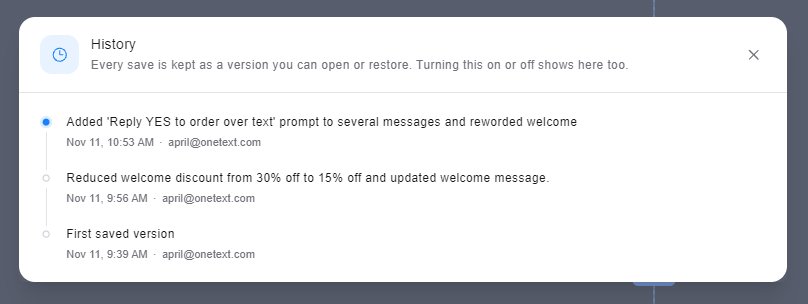
Every saved change to an automation is now kept, so you can look back at any earlier version of a flow and restore it if you need to.
What's New
Full history: each saved version shows when it was saved, who saved it, and a short summary of what changed
View any version: open an earlier version in read-only mode, with stats for the time it was live
Restore with confidence: restoring saves the old flow as a new version, so a restore can be undone too
On/off activity: "Turned on" and "Turned off" entries appear between versions, with who made the change and when
Why This Matters
Easy to see what changed when results shift
A quick way to roll back an edit that didn't work out
A clear record when several people on your team edit flows
Version history starts from when this feature launched, so an automation that hasn't been saved since then will show a short list at first. Campaigns aren't included.
Safer Campaign Launches
(Campaigns > Launch campaign / Schedule campaign)
Two updates help make sure every campaign goes out the way you planned.
What's New
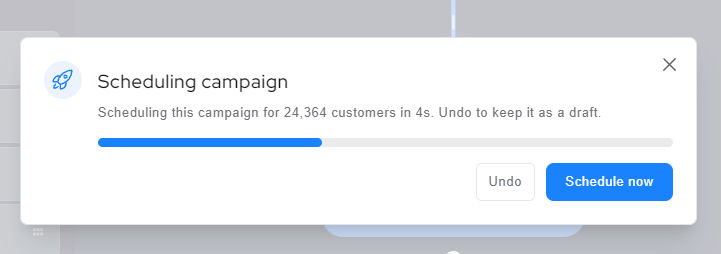
10-second undo: after you click Launch or Schedule, a short countdown appears with Undo and Launch now buttons. Undo puts the campaign back in your drafts, and closing the dialog counts as Undo.
Send in 5 minutes: "Send immediately" is now "Send in 5 minutes". Campaigns start going out 5 minutes after launch, so delivery runs more smoothly during high-traffic sends.
Scheduled campaigns work the same as before
Why This Matters
A last chance to catch a mistake, like a missing exclusion segment
More reliable delivery and link performance on big sends
Clear timing on when your campaign actually starts going out
Need a campaign out at an exact time? Schedule it. Also keep in mind that a "Send in 5 minutes" launch right before quiet hours begin may reach some subscribers the next morning.
Minor Releases
Stripe Setup Status
(Settings > Integrations > Stripe)
The Stripe card now shows Setup Not Finished until Stripe confirms your account can take payments. Click Finish Setup to pick up where you left off in Stripe. During onboarding, the Stripe step stays open until setup is complete. If you connected an existing Stripe account or API keys, finish setup in your own Stripe dashboard.
Onboarding Progress Banner
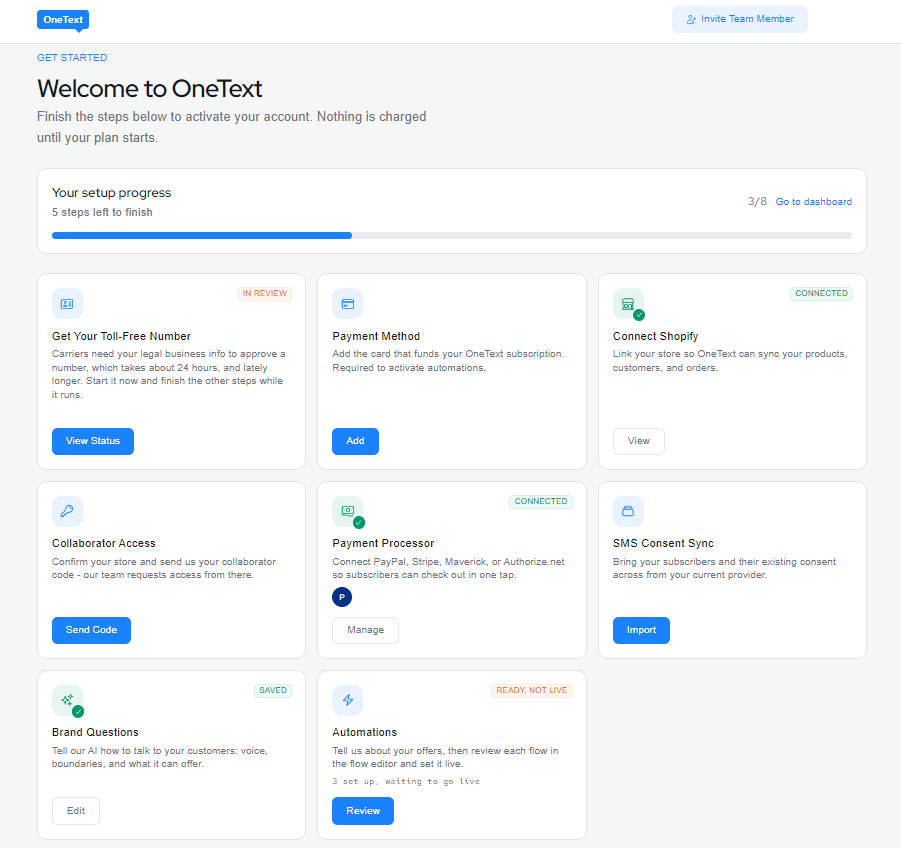
New merchants now see their setup progress at the top of every dashboard page: how many setup steps are done, which are left, and a Continue setup link back to onboarding. The banner goes away once every step is complete.
Popups Fill In from Brand Settings
(Popups > Popup Editor)
Your popup's Opt-in Notice now fills in automatically from Brand Settings, using your Display Name, Terms of Service URL, and Privacy Policy URL. New popups also start with your Brand Settings logo instead of a sample logo, and that logo now shows up in the popup editor's Media Library so you can pick it from the Logo element's Replace button. Anything you've already typed into a popup stays as is.
"Delete Customer" Is Now "Clear Customer Details"
(Texts > customer panel)
The button has a new name that better matches what it does. It clears the customer's name, email, phone, and saved addresses from your account, while their messages and orders stay in place.
General Bug Fixes & Backend Improvements
Various fixes and backend updates to improve platform stability and performance, plus several UI/UX improvements.